
Optimizing File Size: How to Compress TikTok Videos Without Losing Quality
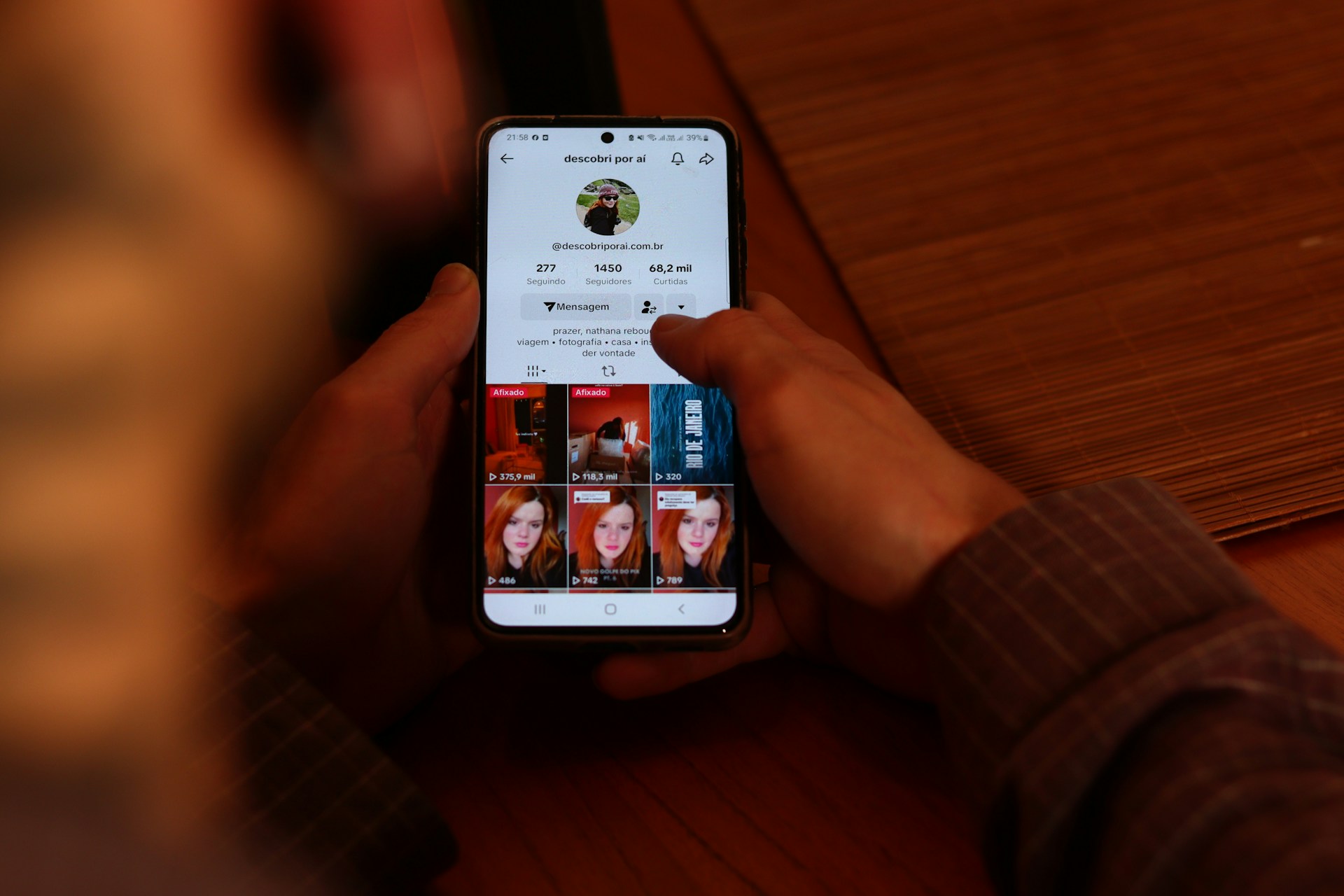
If you’re making TikToks, at some point, you’ve run into a message that says “file too large.” Your edit looks smooth, the vibes are perfect, but you cannot move to the next step. Whether your Wi-Fi is slow, you’re swapping clips between your phone and laptop, or you just want to stay under TikTok’s upload cap, learning how to compress TikTok videos without losing quality is pretty much a must these days. Thankfully, there are tools now that can reduce MP4 file size and still keep everything looking clean.
Why File Size Even Matters on TikTok
TikTok lets you upload up to 1GB on phones and 2GB on desktop. This sounds amazing until you’re stuck watching your progress bar creep along at a slow pace or your upload fails for the fifth time in a row.
Big files take up your storage, reduce your sharing speed, and can fail with slower connections. Cutting down on quality with hard compression is not the best solution. The real trick would be to make the file smaller, but keep it looking (and sounding) basically identical.
How Compression Works
So, how does video compression make your file smaller? The answer is simple – it removes stuff you don’t really need.
This means all those background pixels that barely change no longer take up space. Codecs like H.264 and H.265 are the main players. They look for what stays the same from frame to frame. Next, they just save the differences. That’s how you keep the quality but make the file lighter.
Resolution and bitrate are the two key factors that affect weight:
- The first determines how many pixels your video contains (1080x1920 is a standard for the platform).
- The second defines how much data per second is being processed.
If you turn the bitrate down just a little, you can save a ton of space without really noticing any drop in quality. If you drop it too far, the video will look pixelated. It’s all about finding a good balance.
Step-By-Step: How to Optimize TikTok Videos
- Start with the best video you’ve got. It is not recommended to start with a video that has already been compressed.
- Open it in the compression app of your choice.
- Set your resolution to 1080x1920, frame rate at 30 or 60fps (depends on what you shot at), and pick H.264 or H.265.
- Adjust bitrate — 3 to 5 Mbps is usually perfect for TikTok.
- Export the compressed video.
- Watch your video — especially the fast parts. That’s where compression mess-ups show up. If it looks basically the same, you can move to uploading the video to TikTok.
Tips for Keeping Quality Up and Saving Even More Space
When it comes to quality, small stuff can make a difference.
- Avoid using multiple filters and increasing brightness too much. That will add noise and make compression look worse.
- If you’re adding text or transitions, make sure you’re editing at your final export resolution—otherwise, you get double compression.
- Film with a steady hand or tripod because shaky clips are harder to compress. They always end up looking rougher after.
- Keep colors consistent as much as possible. Super high-contrast shots need more bitrate to avoid looking janky.
If you’re just trying to back up videos on your phone or the cloud, you can compress a little more. For example, you can convert old clips to H.265/HEVC. Most of the time, that will cut the size in half while keeping the video sharp.
For content you’re not planning to post, dropping the resolution to 720p can reduce the size massively. The quality will not be as high but it will still look okay on a phone.
In any case, you should always double-check before you delete the original. You want your archive to stay usable.
Compression for Brands and Pros
If you’re working with brands or want to look professional, quality is key. It is not recommended to reduce it just for the sake of size.
At the same time, if you’re running ads or juggling content across TikTok, YouTube Shorts, and Instagram Reels, you want your content to look sharp and get posted fast. A well-optimized MP4 gets the job done.
Efficient compression is key to smooth uploads and your brand looking consistent everywhere.
On that note, if you’re grabbing user videos with a TikTok downloader, reduce their size before editing. This keeps everything neat, standardizes formats, and prevents platform glitches.
Bottom Line
Compressing TikTok vids isn’t about sacrificing quality. It’s about being smart and finding the right balance between size and quality.
Once you get how codecs, bitrate, and resolution affect your video, you can trim down the files without turning your video into pixels. Smaller files go through uploads fast, look crisp on any feed, and make your life way easier.
At the end of the day, keeping your videos optimized is just part of being a good creator.